How to Clear Cache on Any Phone (iPhone & Android) — 2026 Guide
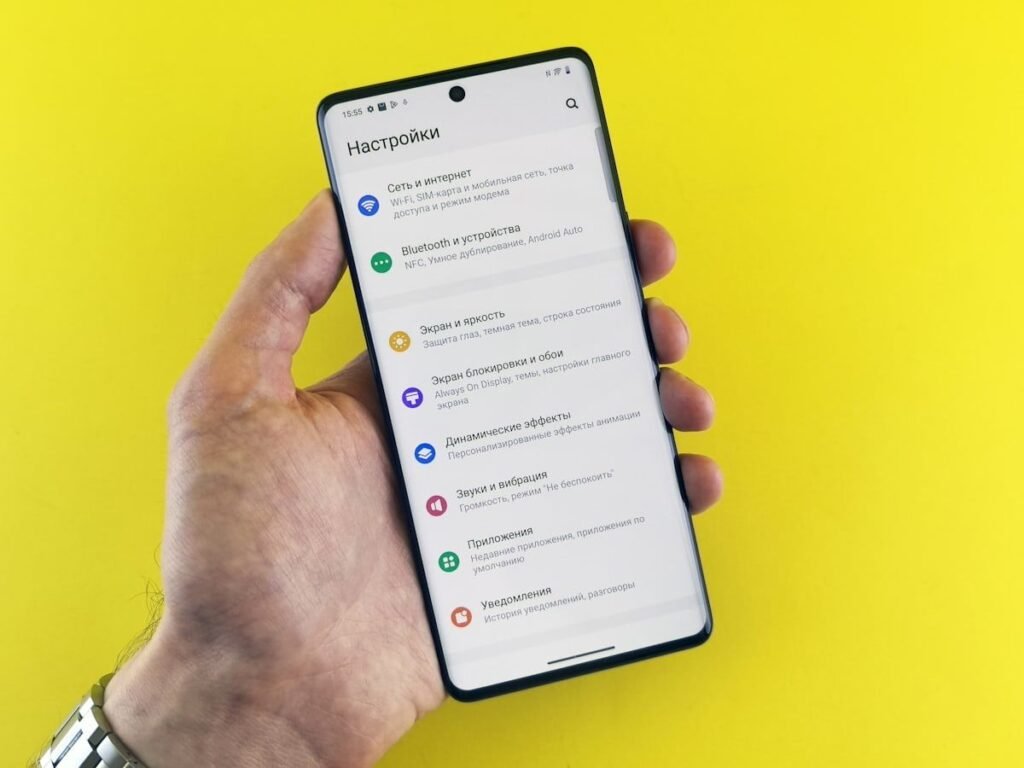
How to Clear Cache on Any Phone (iPhone & Android) — 2026 Guide
Is your phone running slow or running out of storage? Clearing cache can help. Here’s everything you need to know about clearing cache on iPhone and Android devices.
What Is Cache?
Cache is temporary data that apps store to load content faster. Over time, it builds up and can slow down your phone or take up valuable storage space. Clearing cache removes these files without deleting your photos, messages, or passwords.
How to Clear Cache on Android

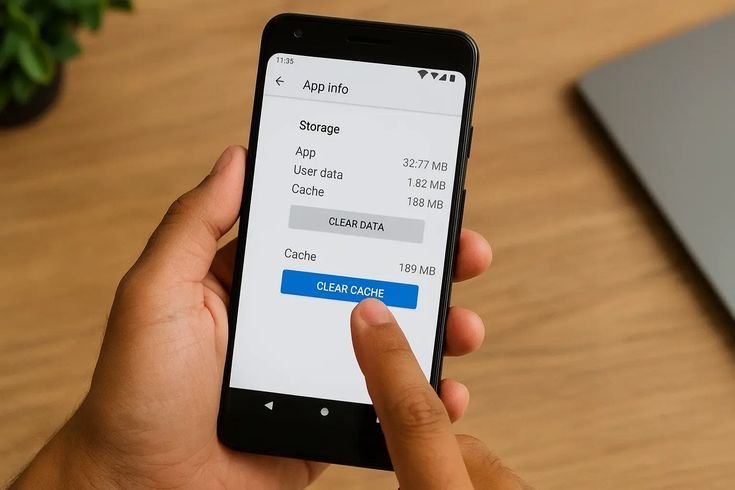
Clear Cache for Individual Apps
- Open Settings
- Tap Apps
- Select the app
- Tap Storage > Clear cache
Clear All Cache at Once
- Go to Settings > Storage
- Tap Cached data
- Confirm by tapping OK
Note: Not all Android phones have this option.
Clear Browser Cache
- Open Chrome
- Tap the three dots > History
- Select Clear browsing data
- Check Cached images and files
- Tap Clear data
How to Clear Cache on iPhone

Clear Safari Cache
- Open Settings > Safari
- Tap Clear History and Website Data
- Confirm
Warning: This also clears your browsing history and logs you out of websites.
Clear App Cache
Method 1: Offload App
- Go to Settings > General > iPhone Storage
- Select the app
- Tap Offload App
- Reinstall from App Store
Method 2: Delete and Reinstall
- Long-press the app icon
- Tap Remove App > Delete App
- Reinstall from App Store
Restart Your iPhone
This clears temporary system files:
iPhone 8 or newer: Quickly press Volume Up, then Volume Down, then hold the Side button until you see the Apple logo.
iPhone 7: Hold Volume Down + Sleep/Wake buttons until the Apple logo appears.
Popular Apps Cache Clearing
- Android: Settings > Apps > Instagram > Storage > Clear cache
- iPhone: Settings > General > iPhone Storage > Instagram > Offload App
- Android: Settings > Apps > Facebook > Storage > Clear cache
- iPhone: In-app > Settings > Media > Clear cache
- Android: Settings > Apps > WhatsApp > Storage > Clear cache
- iPhone: WhatsApp Settings > Storage and Data > Manage Storage
TikTok
- Android: Settings > Apps > TikTok > Storage > Clear cache
- iPhone: Profile > Settings > Free up space > Clear cache
When to Clear Cache
Clear cache when you notice:
- Phone running slower than usual
- Apps crashing frequently
- Low storage space
- Content not loading properly
When NOT to Clear Cache
Don’t clear cache if:
- Your phone is working fine
- You have slow internet (apps will need to re-download data)
- You’re clearing it “just because” (unnecessary maintenance)
Does Clearing Cache Delete My Data?
No. Clearing cache only removes temporary files. Your photos, messages, passwords, and app settings remain completely safe.
Quick Alternatives Before Clearing Cache
- Update apps from the App Store or Play Store
- Restart your phone to fix temporary glitches
- Delete unused apps to free up space
- Check for system updates
Bottom Line
Clear cache only when you experience actual problems. Modern phones manage cache efficiently on their own, so routine clearing isn’t necessary. When you do clear it, apps might load slightly slower the first time as they rebuild their cache.