How to Fix High CPU Usage on Windows 11 (2026 Guide)
How to Fix High CPU Usage on Windows 11 (2026 Guide)
Your Windows 11 PC running hot and loud? Fans spinning like crazy? That’s probably high CPU usage at work. Don’t worry—I’ve been there, and I’m going to show you exactly how to fix it.
What Causes High CPU Usage on Windows 11?
Before we dive into solutions, here’s what’s usually causing the problem:
- Background apps you forgot about
- Windows Update running in the background
- Malware or viruses
- Outdated drivers
- Too many startup programs
- A rogue process hogging resources
Let’s fix it.
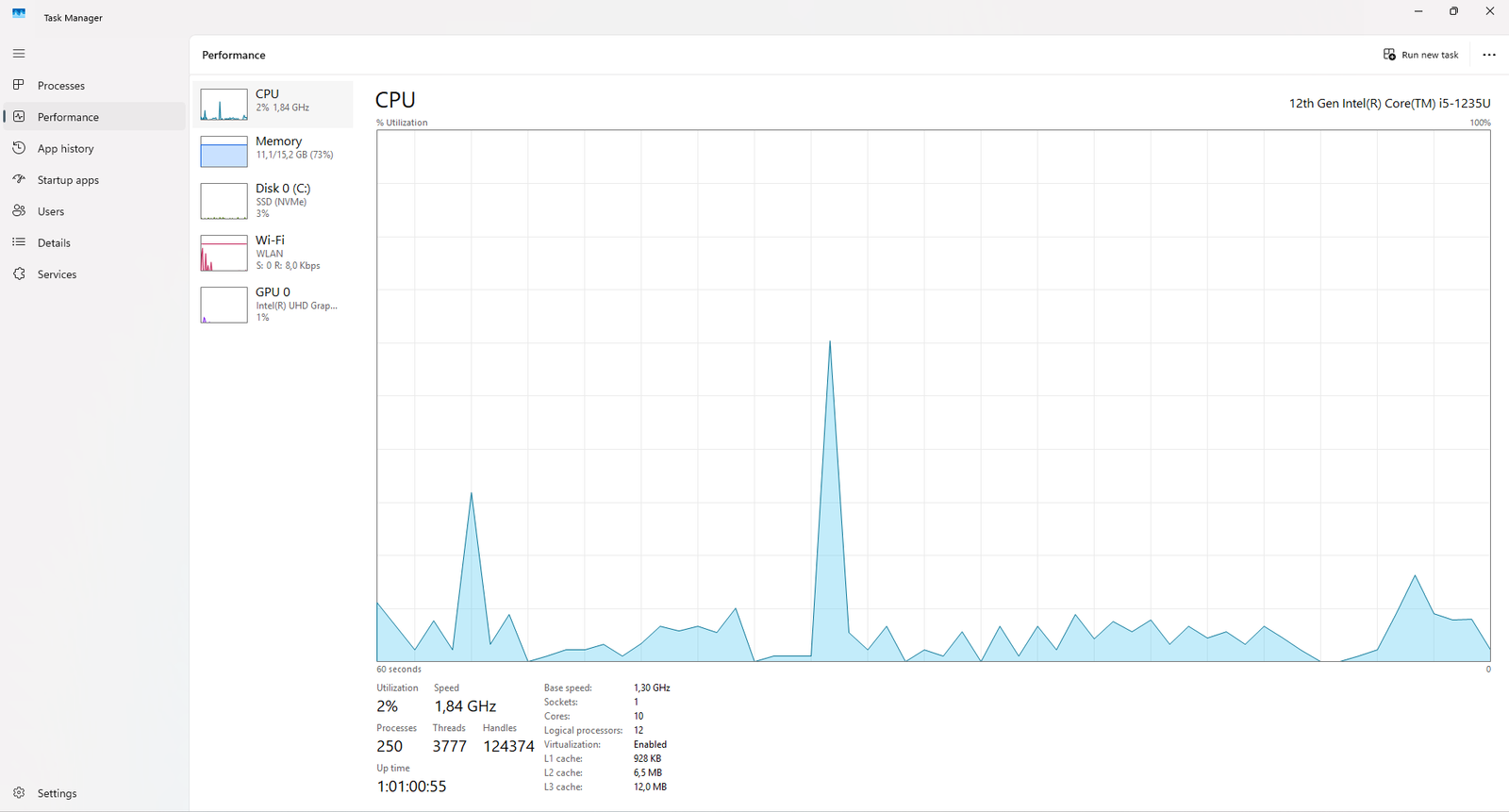
Quick Check: Which Process Is Eating Your CPU?
First, let’s see what’s actually causing the issue:
- Press Ctrl + Shift + Esc to open Task Manager
- Click the CPU column to sort by usage
- Look for anything using more than 50-60% consistently
Found the culprit? Great. Now let’s deal with it.
7 Fast Fixes for High CPU Usage
1. Restart Your Computer (Seriously)
I know it sounds obvious, but a simple restart fixes the issue about 40% of the time. Windows 11 can get messy after running for days, and a fresh start clears out temporary glitches.
Right-click Start > Shut down or sign out > Restart
2. End Unnecessary Tasks
If a specific program is causing the problem:
- Open Task Manager (Ctrl + Shift + Esc)
- Find the problematic process
- Right-click it and select End task
Just don’t end anything that says “Windows” or “System” unless you know what you’re doing.
3. Disable Startup Programs
Too many apps launching at startup will crush your CPU:
- Open Task Manager
- Go to the Startup tab
- Right-click apps you don’t need immediately and select Disable
Keep essentials like antivirus, but disable things like Spotify, Discord, or Steam. You can open them manually when you need them.
4. Update Windows 11
Outdated Windows can cause CPU spikes:
- Press Win + I to open Settings
- Go to Windows Update
- Click Check for updates
- Install everything and restart
5. Scan for Malware
Viruses love to eat up CPU:
- Open Windows Security (search for it in Start)
- Go to Virus & threat protection
- Click Quick scan or Scan options > Full scan
If Windows Security finds nothing but you’re still suspicious, try Malwarebytes as a second opinion.
6. Adjust Power Settings
Windows 11’s power plan might be pushing your CPU too hard:
- Search for Power & battery in Settings
- Click Power mode
- Change it to Balanced or Best power efficiency
7. Check for Driver Updates
Outdated drivers can cause CPU problems:
- Right-click Start > Device Manager
- Look for any devices with a yellow exclamation mark
- Right-click them and select Update driver
- Choose Search automatically for drivers
Advanced Fixes (If Nothing Else Worked)
Disable Windows Search Indexing
Search indexing can be a CPU hog:
- Search for Services in Start
- Find Windows Search
- Right-click > Properties
- Set Startup type to Disabled
- Click Stop, then OK
You’ll still be able to search, it’ll just be a bit slower.
Disable SysMain (Superfetch)
This service pre-loads apps but can cause high CPU:
- Open Services
- Find SysMain
- Right-click > Properties
- Set to Disabled
- Click Stop, then OK
Reset Windows 11 (Last Resort)
If nothing works, a reset might be necessary:
- Go to Settings > System > Recovery
- Click Reset PC
- Choose Keep my files
- Follow the prompts
This reinstalls Windows but keeps your personal files. Back up important stuff first, just in case.
Prevent High CPU Usage in the Future
Once you’ve fixed the problem, keep it from coming back:
- Close apps you’re not using instead of minimizing them
- Uninstall bloatware you don’t need
- Keep Windows updated regularly
- Run antivirus scans monthly
- Clean up your hard drive with Disk Cleanup every few months
- Monitor Task Manager occasionally to catch issues early
Should You Worry About CPU Temperature?
High CPU usage usually means high temperatures. If your PC is getting too hot:
- Download Core Temp or HWMonitor to check temperatures
- If temps consistently hit 80-90°C, clean out dust from your PC
- Make sure your fans are working
- Consider improving airflow or reapplying thermal paste
When to Get Help
If you’ve tried everything and your CPU is still maxed out, you might have:
- Hardware failure (failing CPU or motherboard)
- Corrupted Windows installation
- A persistent virus that needs professional removal
In these cases, it’s worth taking your PC to a professional or doing a clean Windows installation from a USB drive.
Bottom Line
High CPU usage on Windows 11 is annoying, but it’s usually fixable. Start with the simple stuff—restart, close apps, disable startup programs. Most of the time, that’s all you need.
If the problem persists, work through the advanced fixes. And remember: if your CPU is constantly running at 100% even when you’re doing nothing, something’s definitely wrong and needs fixing.
Got questions? Drop a comment below and I’ll help you out.