How to Fix Battery Draining Fast on Android (2026 Solutions)
How to Fix Battery Draining Fast on Android (2026 Solutions)
Your phone’s at 15% and it’s only 2 PM? Yeah, we’ve all been there. Android battery drain is super frustrating, especially when you’re not even doing anything crazy on your phone. The good news? I’ve got some legit fixes that actually work in 2026.
Why Your Battery Dies So Fast
Before we fix it, let’s figure out what’s killing your battery. Usually, it’s not just one thing—it’s a combo of stuff:
Your screen is the biggest battery killer (literally uses like 40-50% of your power). Then you’ve got apps running in the background, constantly searching for Wi-Fi and 5G, and features like Always-On Display that look cool but drain power 24/7.
Sometimes your battery is just old. If your phone’s 2+ years old, the battery naturally gets weaker over time.
Quick Fixes That Actually Work
1. Turn On Battery Saver Mode
This is the easiest fix ever. Just swipe down from the top, tap Battery Saver, and boom—you’re done. Your phone will chill out on background stuff and make your battery last way longer.
You can set it to turn on automatically at 20%. Trust me, you’ll thank yourself later when you’re out and your phone doesn’t die.
2. Lower Your Brightness
I know you like your screen bright, but it’s literally eating your battery alive. Just turn it down a bit—your eyes will adjust in like 30 seconds.
Even better, go to Settings > Display and turn on Adaptive Brightness. Your phone will automatically adjust, and you don’t have to think about it.
3. Ditch Always-On Display
Always-On Display looks sick, but it keeps your screen on literally all day. Unless you’re constantly checking the time, you don’t need it.
Settings > Display > Always-On Display—turn it off. I did this and got like an extra hour of battery. Worth it.
4. Switch to 4G (Seriously)
Here’s something most people don’t know: 5G absolutely destroys your battery, especially in areas with bad coverage. Your phone keeps searching for that 5G signal and burns through power.
Unless you desperately need super fast speeds:
- Settings > Network & Internet > SIMs
- Tap your SIM
- Change to LTE/4G
You can always switch back when you need it.
5. Turn Off Stuff You’re Not Using
How many times have you left Bluetooth on for hours after using your headphones? Or kept Wi-Fi searching all day?
Just swipe down and toggle off Bluetooth, Wi-Fi, and GPS when you’re not using them. Takes two seconds, saves tons of battery.
Find Apps That Are Killing Your Battery
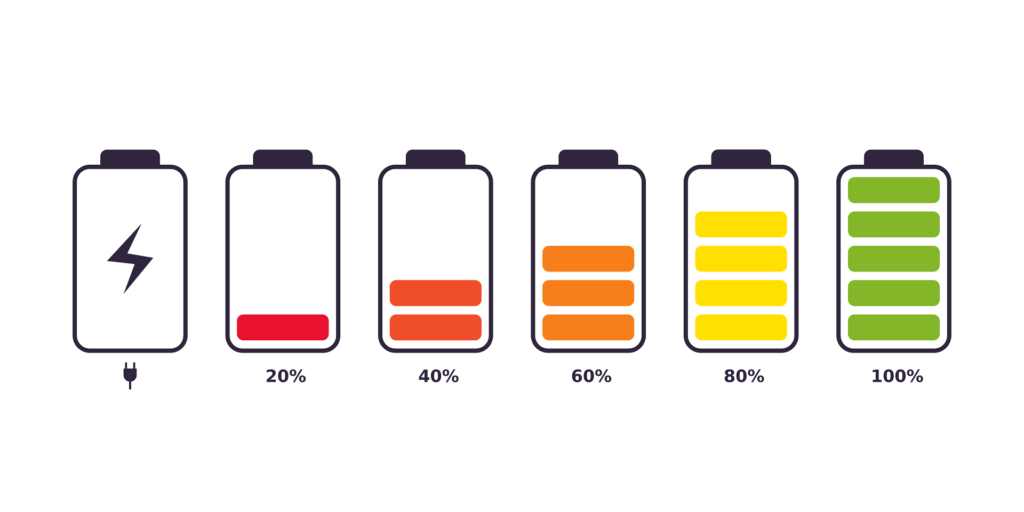
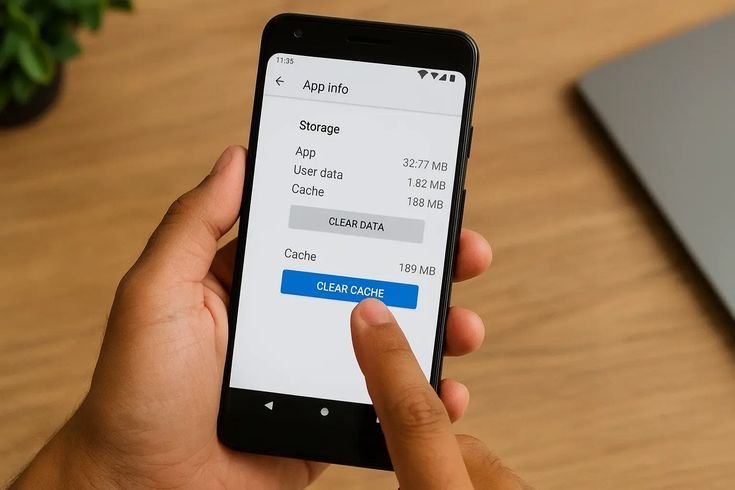
Some apps are straight-up battery vampires. They run in the background non-stop, even when you haven’t opened them in days.
Here’s how to catch them:
- Settings > Battery
- Tap the battery graph
- Look for apps using crazy amounts of battery
The usual suspects? Social media (Instagram, TikTok, Snapchat), streaming apps (Netflix, YouTube), and games you forgot you downloaded.
Fix it:
- Settings > Apps > pick the app
- Tap Battery
- Choose “Restricted”
This stops them from going wild in the background.
Use Dark Mode (If You Have OLED)
If your phone has an OLED screen (most newer Samsung, Pixel, and OnePlus phones), dark mode genuinely saves battery. Black pixels literally turn off on these screens.
Settings > Display > Dark theme. Done.
Also use dark wallpapers and turn on dark mode in apps like YouTube and Instagram.
Lower Your Refresh Rate
High refresh rate (120Hz) makes everything super smooth, but it destroys your battery. If you want better battery life:
- Settings > Display > Smooth Display
- Switch to 60Hz
You’ll notice it’s slightly less smooth for like a day, then you’ll forget about it. But your battery will definitely notice.
Manage Your Location
GPS is a huge battery drain. Apps constantly checking your location—even when you’re not using them—kills battery fast.
Settings > Location—turn it off when you’re not using maps. Also:
- Settings > Apps > Permissions > Location
- Change apps from “Allow all the time” to “Only while using”
Random apps don’t need to know where you are 24/7.
Smart Charging Habits
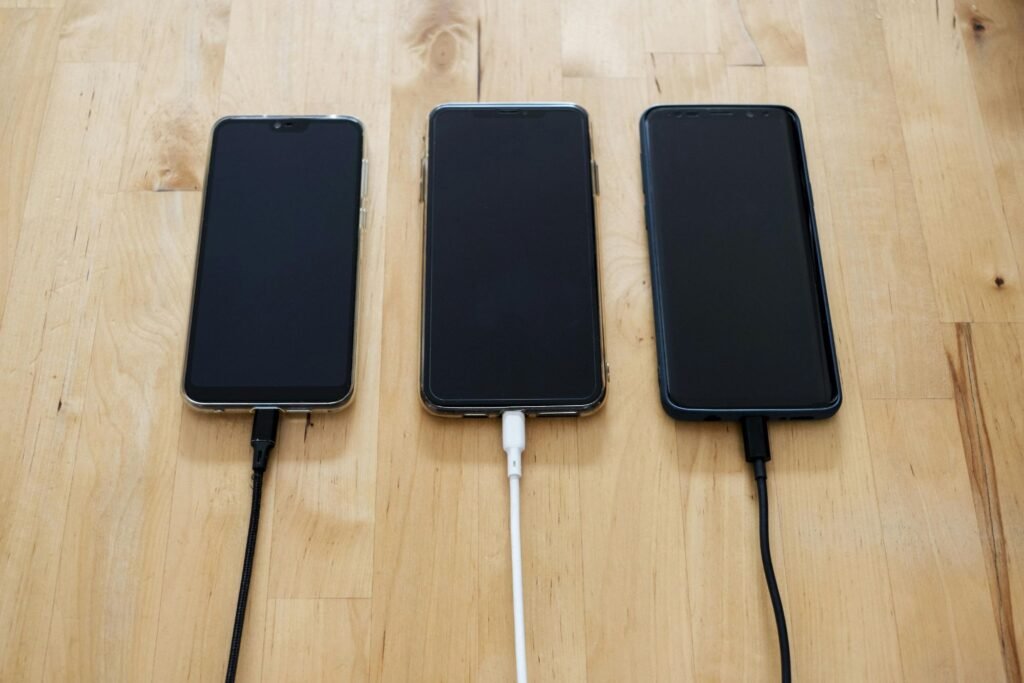
How you charge matters for long-term battery health:
Don’t always charge to 100%. Keep it between 20-80% when possible. Some phones let you set an 80% limit—use it.
Don’t let it die completely. Charge when you hit 20-30%.
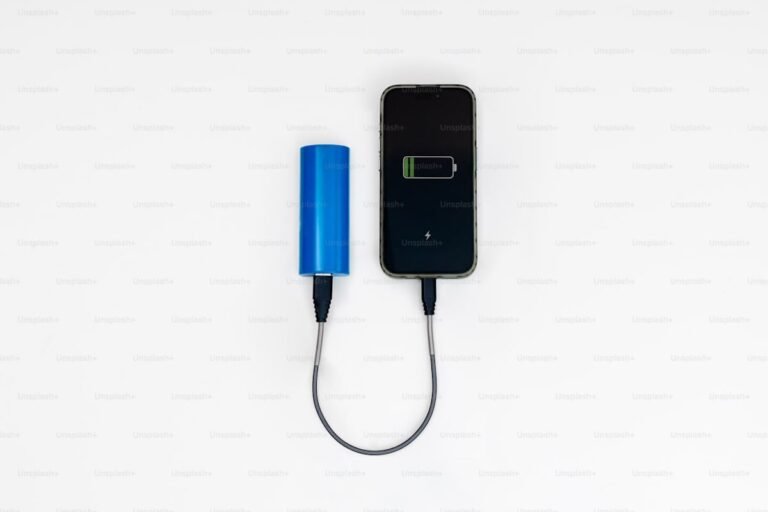
Avoid heat. Don’t use your phone while fast charging. Heat kills batteries faster than anything.
Use good chargers. Cheap knockoffs can damage your battery.
System Stuff
Do this once a week:
Update everything. Settings > System > System update. Also update apps in Play Store. The January 2026 updates actually fixed battery issues.
Restart your phone. Once a week, just restart it. Clears out glitches that might be draining battery.
When to Replace Your Battery
Sometimes the battery is just dead and needs replacing:
- Your phone’s 2+ years old
- It randomly shuts off even with charge
- It gets super hot while charging
Most repair shops can replace it. Usually cheaper than buying a new phone.
The Bottom Line
Fixing Android battery drain isn’t rocket science. Start with the quick stuff—Battery Saver, lower brightness, turn off Always-On Display. If you need more, restrict apps and enable Adaptive Battery.
The key is actually doing it instead of just dealing with a dying phone all day. Spend five minutes on these fixes and you can actually make it through a full day on one charge.
Your battery will thank you, and you won’t be that person asking everyone for a charger at 3 PM.
Good luck, and may your battery stay green! 🔋