iPhone Running Slow? How to Fix Lagging and Freezing (2026 Guide)

iPhone Running Slow? How to Fix Lagging and Freezing (2026 Guide)
Your iPhone freezing right when you’re trying to send a text? Apps taking forever to open? The keyboard lagging while you type? Yeah, that’s super frustrating. iPhones are supposed to be smooth and fast, so when yours starts acting like a potato, something’s definitely wrong.
Don’t worry though—I’ve dealt with this on my own iPhone, and there are some legit fixes that actually work. Let’s get your phone running smooth again.
Why Is Your iPhone So Slow?
Before we fix it, let’s figure out what’s causing the problem. Usually it’s one of these things:
iOS 26 Update Issues: The latest iOS 26 update is kinda heavy on older iPhones. Some people noticed their iPhone 13 or 14 got slower after updating. Apple’s still working out bugs.
Storage Almost Full: When your storage is 90%+ full, your iPhone struggles to do basic stuff. It needs breathing room to work properly.
Too Many Apps Running: All those apps in the background are eating up memory, making everything slow.
Old Battery: If your battery health is below 80%, your iPhone actually slows itself down on purpose to save power. Not cool, Apple.
Cache Buildup: Apps store temporary files that pile up over time and bog down your phone.
Quick Fixes You Can Try Right Now
1. Restart Your iPhone (Seriously)
I know it sounds basic, but a restart fixes like 50% of iPhone problems. It clears out all the junk running in the background and gives your phone a fresh start.
How to restart:
- iPhone X or newer: Hold side button + volume button, slide to power off
- iPhone 8 or older: Hold the top/side button until the slider appears
Wait 30 seconds after it turns off, then turn it back on. Test if it’s faster now.
2. Close All Your Apps
Those 47 apps you have open? Yeah, they’re slowing you down. Swipe them all away.
How to close apps:
- Swipe up from the bottom (or double-click home button on older iPhones)
- Swipe up on each app to close it
Don’t worry—closing apps won’t delete anything. Your phone just doesn’t have to juggle them all at once anymore.
3. Free Up Storage Space
If your storage is almost full, your iPhone will lag like crazy. You need at least 1GB free for it to run smoothly.
Check your storage:
- Settings > General > iPhone Storage
Delete stuff you don’t need:
- Old screenshots and memes
- Apps you never use
- Downloaded videos and music
- Duplicate photos
I deleted like 3GB of random screenshots and my phone immediately got faster.
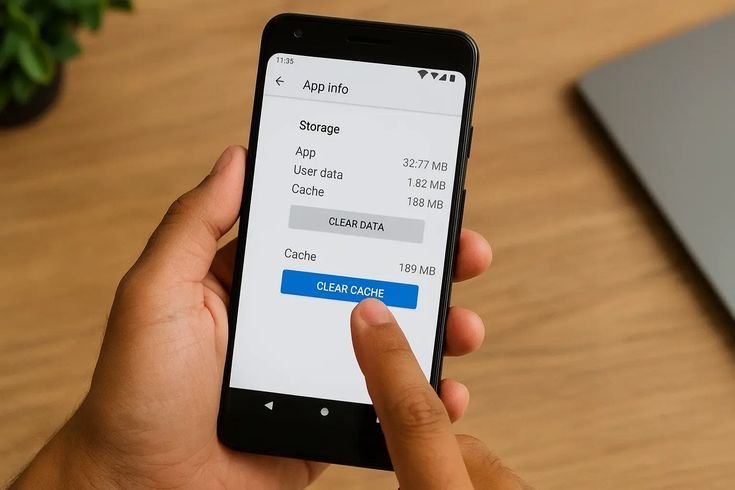
4. Clear Safari Cache
Safari stores tons of website data that slows things down. Clearing it helps a lot.
How to clear cache:
- Settings > Safari > Clear History and Website Data
- Tap Clear History and Data
You’ll have to log back into websites, but it’s worth it for the speed boost.
5. Update Your Apps
Outdated apps can cause major lag, especially after an iOS update. They need to be optimized for iOS 26.
Update apps:
- Open App Store
- Tap your profile picture
- Scroll down to see updates
- Tap Update All
6. Turn Off Background App Refresh
This feature lets apps update in the background even when you’re not using them. It eats up memory and slows everything down.
Disable it:
- Settings > General > Background App Refresh
- Turn it off completely or just for specific apps
You’ll still get notifications, don’t worry. Apps just won’t constantly refresh when you’re not using them.
Advanced Fixes for Stubborn Lag
Disable Reduce Transparency (Weird but Works)
This sounds backwards, but some people fixed iOS 26 lag by doing this:
- Settings > Accessibility > Display & Text Size > Reduce Transparency
- Turn it OFF, exit settings, then turn it back ON
I have no idea why this works, but people on Apple forums swear by it.
Turn Off Motion Effects
All those fancy animations look cool but they can slow down older iPhones.
- Settings > Accessibility > Motion > Reduce Motion
- Turn it ON
Things won’t look as fancy, but your phone will be noticeably faster.
Check Your Battery Health
If your battery is dying, iOS slows down your phone to make it last longer.
Check battery health:
- Settings > Battery > Battery Health
If it’s below 80%, you might need a new battery. Apple replaces them for around $89, and it makes a huge difference.
Update to Latest iOS Version
Sometimes iOS bugs cause lag. Apple fixes these with updates.
- Settings > General > Software Update
- Install any available updates
Make sure you’re on the latest version of iOS 26. Apple released iOS 26.2 and 26.3 specifically to fix performance issues.
Reset All Settings (Last Resort)
If nothing else works, reset your settings. This doesn’t delete your data—just resets preferences.
- Settings > General > Transfer or Reset iPhone > Reset > Reset All Settings
You’ll have to set up Wi-Fi and stuff again, but it often fixes weird slowdowns.
Keep Your iPhone Running Smooth
Once you’ve fixed the lag, do this to keep your iPhone fast:
Restart once a week: Clears temporary glitches
Delete unused apps: Less clutter = faster phone
Update regularly: Get bug fixes and improvements
Keep 10-15% storage free: Your iPhone needs room to work
Don’t let battery get too low: Charge at 20-30%
When to Get Help
Sometimes the problem is hardware, not software. Get your iPhone checked if:
- It gets super hot while doing basic stuff
- It randomly shuts off
- The lag started after you dropped it
- Battery health is way below 80%
Apple Store or authorized repair shops can diagnose hardware issues.
The Bottom Line
iPhone lag is annoying but usually fixable. Start with the easy stuff—restart, close apps, free up storage. If that doesn’t work, try clearing cache and turning off background refresh.
Most people find their iPhone runs perfectly after just freeing up some storage and restarting. The advanced fixes are there if you need them, but honestly? The basic stuff works 90% of the time.
Your iPhone should be fast and smooth. If it’s not, something’s wrong, and you deserve to fix it. Spend five minutes trying these solutions, and you’ll probably get your speedy iPhone back.
Good luck, and may your iPhone never freeze mid-text again! 📱