Why Won’t My Apps Open? Complete Guide to Fixing Android Apps in 2026
Why Won’t My Apps Open? Complete Guide to Fixing Android Apps in 2026
We’ve all been there – you tap on your favorite app and nothing happens. Or worse, it crashes immediately. If you’re dealing with apps not opening on your Android device, you’re definitely not alone. This frustrating issue affects millions of users daily, but the good news is that most cases can be fixed without needing a tech expert.
Let me walk you through the most effective solutions that actually work in 2026, based on common causes and proven fixes.
Quick Fixes That Solve Most Problems
Before diving into complex solutions, try these simple steps first. They resolve about 70% of app opening issues.
Restart your phone. I know it sounds too simple, but a quick reboot clears temporary glitches that prevent apps from launching. Hold your power button, select restart, and give your device a fresh start.
Check your internet connection. Many apps require an active connection to open properly. Toggle your WiFi or mobile data off and back on to refresh the connection.
Update the problematic app. Open the Google Play Store, search for the app, and tap update if available. Developers constantly release patches for bugs and compatibility issues.
Clear App Cache and Data
When apps accumulate too much cached data, they can become unstable and refuse to open. Here’s how to clear it:
Go to Settings, then Apps or Application Manager. Find the troublesome app and tap on it. Select Storage, then tap Clear Cache first. If the app still won’t open, return to this menu and tap Clear Data (note that this will reset the app to its original state).
This app cache clearing method fixes corrupted files that prevent proper launching. It’s particularly effective for social media apps, messaging platforms, and streaming services.
Update Your Android Operating System
Android system updates often include critical fixes for app compatibility. Manufacturers push these updates to address known issues with app performance.
Navigate to Settings, scroll to System, then tap System Update or Software Update. If an update is available, download and install it. Your phone will restart, and many app opening problems should disappear.
In 2026, Android 15 and 16 are the most common versions, and keeping your device updated ensures maximum app compatibility.
Deal with Storage Space Issues
Insufficient storage space Android is a sneaky culprit. When your device runs low on memory, apps struggle to load necessary files.
Check your storage by going to Settings and tapping Storage. If you’re above 90% capacity, it’s cleanup time. Delete unused apps, clear old photos and videos, or move files to cloud storage. Apps typically need at least 500MB of free space to function properly.
Uninstall and Reinstall the App
Sometimes a fresh app installation is the cleanest solution. This removes any corrupted files completely.
Long-press the app icon on your home screen and select Uninstall. Then visit the Play Store, search for the app, and reinstall it. You’ll start with a clean slate, which often resolves persistent opening issues.
Remember to back up any important data before uninstalling, as this will delete everything associated with the app.
Check App Permissions
Android app permissions can prevent apps from opening if they’re denied access to essential features. Some apps won’t launch without camera, storage, or location access.
Go to Settings, then Apps, and select the problematic app. Tap Permissions and ensure all necessary permissions are granted. Try opening the app again after adjusting permissions.
Disable Battery Optimization
Your phone’s battery saver might be too aggressive, preventing apps from running in the background or opening properly.
Navigate to Settings, then Battery, and find Battery Optimization. Look for the app that won’t open and select Don’t Optimize. This gives the app more freedom to operate normally.
Boot into Safe Mode
Safe mode Android disables all third-party apps, helping you identify if another app is causing conflicts.
Press and hold the power button, then long-press the Power Off option. You’ll see a prompt to reboot into Safe Mode. Try opening the problematic app. If it works in safe mode, a recently installed app is likely causing the conflict.
Factory Reset as Last Resort
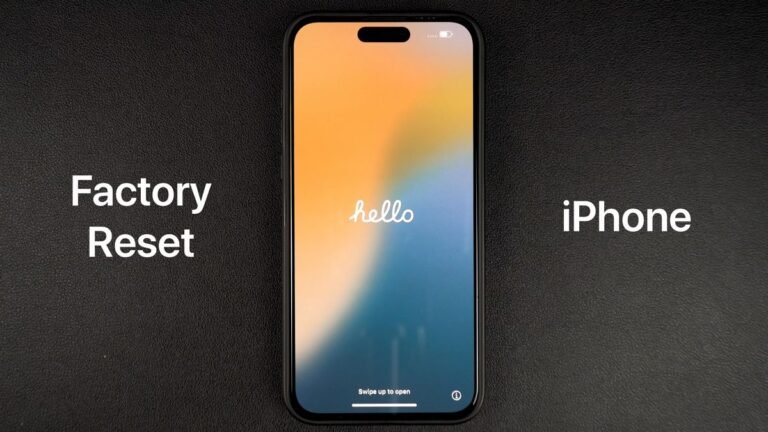
If nothing else works, a factory reset Android returns your device to original settings. This nuclear option erases everything, so back up your data first.
Go to Settings, select System, then Reset Options, and choose Erase All Data. After setup, reinstall your apps one by one to identify any problematic software.

Final Thoughts
Most app opening issues stem from simple causes like outdated software, corrupted cache, or insufficient storage. Start with the easiest solutions and work your way down the list. In my experience, clearing cache and updating apps solves the majority of problems.
If you’re still struggling after trying these methods, the issue might be hardware-related or specific to your device model. Contact your phone manufacturer’s support or visit an authorized service center for professional diagnosis.
Remember, keeping your Android device updated and maintaining adequate storage space prevents most app issues before they start.