
Reset iPhone to factory settings
How to Factory Reset Your iPhone: Complete Guide
Factory resetting your iPhone can solve many software issues, prepare your device for sale, or give you a fresh start. This comprehensive guide walks you through everything you need to know about resetting your iPhone safely and effectively.
Before You Begin: Important Preparation Steps
Before performing a factory reset, take these crucial steps to protect your data:
Back Up Your Data: Create a backup using iCloud or your computer. This ensures you won’t lose important photos, contacts, messages, and app data.
Sign Out of iCloud: While the reset process handles this automatically, you may want to manually sign out if you’re selling or giving away your device.
Disable Find My iPhone: This is typically handled during the reset process, but it’s essential for the reset to complete successfully.
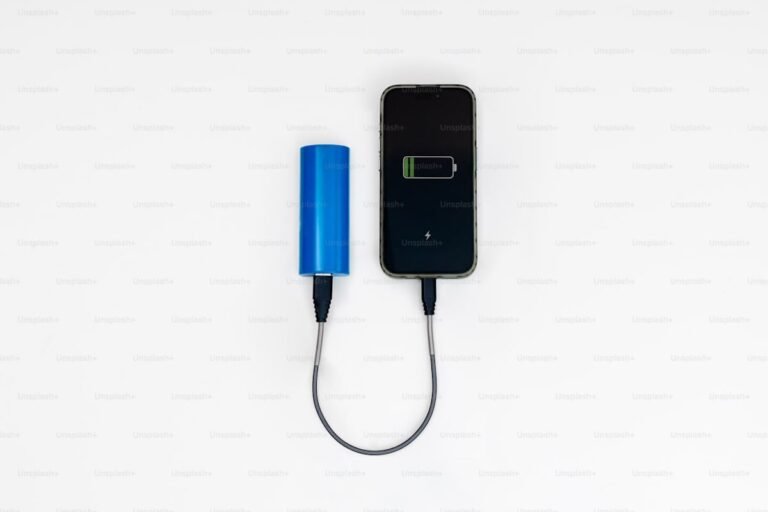
Charge Your Device: Ensure your iPhone has at least 50% battery to prevent interruptions during the reset process.

Method 1: Reset Through Settings (Recommended)
This is the easiest and most straightforward method if your iPhone is functioning normally.
Step-by-Step Instructions:
- Open the Settings app on your iPhone
- Tap General
- Scroll down and tap Transfer or Reset iPhone (on iOS 15 or later) or Reset (on earlier versions)
- Select Erase All Content and Settings
- Enter your device passcode when prompted
- Enter your Apple ID password to disable Activation Lock
- Tap Erase iPhone to confirm
- Wait for the process to complete (this may take several minutes)
Your iPhone will restart and display the setup screen, just as it did when you first purchased it.
Method 2: Reset Using a Computer (iTunes or Finder)
Use this method if you’ve forgotten your passcode or your iPhone isn’t responding properly.
For macOS Catalina or Later:
- Connect your iPhone to your Mac using a USB cable
- Open Finder
- Select your iPhone from the sidebar
- Click Restore iPhone
- Click Restore again to confirm
- Wait for the process to complete
For Windows or older macOS versions:
- Connect your iPhone to your computer using a USB cable
- Open iTunes
- Click the iPhone icon in the upper-left corner
- Click Restore iPhone
- Click Restore again to confirm
- Wait for the restoration process to finish
Method 3: Recovery Mode Reset
If your iPhone is completely unresponsive or stuck, recovery mode can help.
Entering Recovery Mode:
The button combination varies by iPhone model:
iPhone 8 or later: Press and quickly release Volume Up, press and quickly release Volume Down, then press and hold the Side button until you see the recovery mode screen.
iPhone 7 and 7 Plus: Press and hold both the Side (or Top) button and the Volume Down button until you see the recovery mode screen.
iPhone 6s and earlier: Press and hold both the Home button and the Top (or Side) button until you see the recovery mode screen.
Once in recovery mode, connect to your computer and select Restore when prompted.

What Happens During a Factory Reset?
When you factory reset your iPhone, the following occurs:
- All personal data, including photos, messages, and contacts, is permanently deleted
- All apps and their data are removed
- System settings return to default
- iOS remains installed (though it may update to the latest version)
- The device becomes unlinked from your Apple ID
After the Reset: Setting Up Your iPhone
Once the reset is complete, you’ll see the “Hello” screen. You can either:
- Set up as a new iPhone
- Restore from an iCloud backup
- Restore from a computer backup
Choose the option that best fits your needs.
Common Issues and Troubleshooting
Reset Won’t Complete: Ensure you have a stable internet connection and sufficient battery. Try restarting and attempting again.
Forgot Apple ID Password: Use Apple’s account recovery process at iforgot.apple.com before attempting to reset.
Device Won’t Enter Recovery Mode: Make sure you’re using the correct button combination for your specific iPhone model.
Stuck on Apple Logo: This may indicate a deeper software issue. Try entering recovery mode and restoring through a computer.
When Should You Factory Reset Your iPhone?
Consider a factory reset in these situations:
- Selling or giving away your device
- Experiencing persistent software glitches or crashes
- Your iPhone is running extremely slowly
- Preparing to trade in your device
- Starting fresh after major iOS updates
- Resolving issues that basic troubleshooting can’t fix
Conclusion
Factory resetting your iPhone is a powerful solution for various issues, but it should be approached carefully. Always back up your data first, and choose the method that best suits your situation. Whether you’re troubleshooting problems or preparing your device for a new owner, following these steps will ensure a smooth and successful reset process.
Remember, a factory reset is irreversible, so make absolutely certain you’ve saved everything important before proceeding.