
Why Is My Phone Not Receiving Notifications? (2026 Fixes)
Why Is My Phone Not Receiving Notifications? (2026 Fixes)
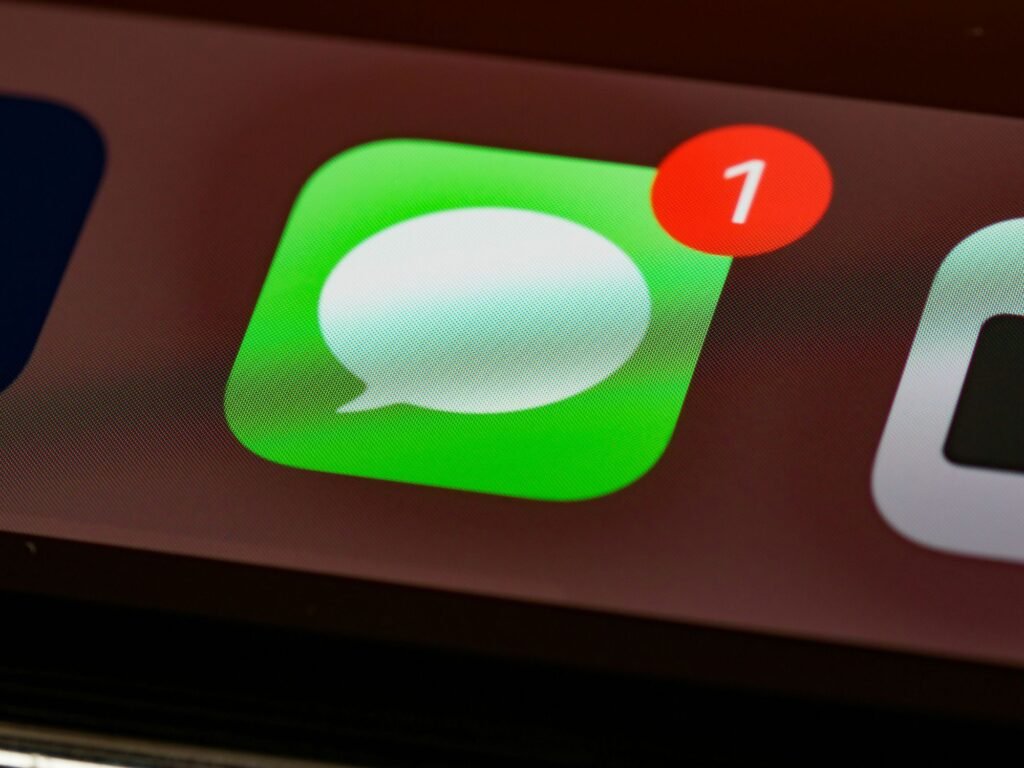
We’ve all been there – you pick up your phone expecting to see messages, emails, or app alerts, only to find… nothing. Meanwhile, your friend mentions they texted you hours ago. Frustrating, right? If your phone isn’t receiving notifications properly, you’re not alone. This common issue affects millions of smartphone users, but the good news is that it’s usually fixable with a few simple tweaks.
Let’s dive into why your notifications might be going missing and how to get them back on track.
Understanding Why Notifications Stop Working
Before we jump into solutions, it’s helpful to understand what’s happening. Your phone’s notification system is surprisingly complex, involving multiple layers of settings, battery optimization features, network connections, and app permissions. When any of these components gets misconfigured, your notifications can disappear into the digital void.
The most common culprits? Overly aggressive battery-saving features, incorrect notification settings, network connectivity issues, or outdated software. Sometimes it’s a simple toggle that got switched off accidentally, and other times it’s a deeper system issue.
Check Your Basic Notification Settings First
Start with the obvious stuff – I know it sounds too simple, but you’d be surprised how often this fixes the problem. Head to your phone’s settings and make sure notifications are actually enabled for the apps you’re not hearing from.
On iPhone, go to Settings > Notifications and scroll through your app list. Make sure each app has “Allow Notifications” turned on. On Android devices, navigate to Settings > Notifications > App notifications and verify that your apps have notification permissions enabled.
While you’re there, check if Do Not Disturb mode is accidentally turned on. This silent productivity killer blocks most notifications and is easy to enable without realizing it. On both iOS and Android, you can usually find this in your quick settings menu or notification shade.
Network Connection Problems

Your phone needs an active internet connection to receive most notifications, especially for messaging apps, social media, and email. If you’re connected to WiFi but notifications aren’t coming through, try switching to mobile data (or vice versa) to see if that’s the issue.
For messaging apps like WhatsApp, Telegram, or iMessage, a stable connection is essential. Check your WiFi signal strength and consider restarting your router if you’re experiencing connectivity issues at home. Sometimes simply toggling Airplane mode on and off can refresh your network connections and get notifications flowing again.
Battery Optimization Is Often the Hidden Culprit
Here’s where things get interesting. Modern smartphones are obsessed with battery life (for good reason), but sometimes they’re a little too enthusiastic about saving power. Both Android and iOS use battery optimization features that can put apps to sleep in the background, preventing them from sending you notifications.
On Android, go to Settings > Battery > Battery optimization and look for apps that should always be allowed to run in the background. Set important apps to “Not optimized” or “Unrestricted” to ensure they can deliver notifications promptly.
iPhone users should check Settings > General > Background App Refresh and make sure it’s enabled for apps where you need timely notifications. iOS has gotten much better about this in recent years, but it’s still worth verifying.
Update Everything
I know, I know – everyone tells you to update your software. But seriously, outdated apps or operating systems can cause notification issues. Developers regularly release updates that fix bugs related to notification delivery.
Check for system updates in your phone’s settings, and head to the App Store or Google Play Store to update your individual apps. Sometimes a notification problem that’s been bugging you for weeks disappears immediately after a simple update.
Clear Cache and App Data
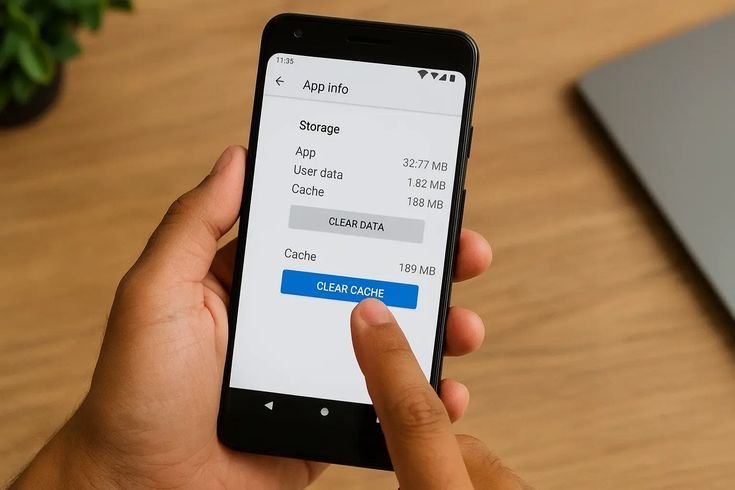
When apps start misbehaving, clearing their cache can work wonders. This removes temporary files that might be causing conflicts without deleting your actual data or login information.
On Android, go to Settings > Apps, select the problematic app, and tap “Clear Cache.” If that doesn’t work, you can also try “Clear Data,” but be aware this will reset the app to its default state, so you’ll need to log in again.
iPhone users can try deleting and reinstalling the app, which essentially achieves the same result.
Check Notification Channels (Android)
Android’s notification channels give you granular control over different types of notifications from the same app. Sometimes a specific channel gets disabled while others remain active, making it seem like you’re only getting some notifications.
Open Settings > Apps > Notifications, select your app, and review all the notification categories listed. Make sure the ones you care about are enabled and set to the right priority level.
Reset Network Settings
If you’ve tried everything else and notifications still aren’t working, resetting your network settings can help. This won’t delete your personal data, but you’ll need to reconnect to WiFi networks and re-pair Bluetooth devices.
On iPhone: Settings > General > Transfer or Reset iPhone > Reset > Reset Network Settings
On Android: Settings > System > Reset options > Reset WiFi, mobile & Bluetooth
Still Not Working? Try These Advanced Fixes
If you’re still struggling, check if your phone’s date and time settings are correct. Believe it or not, incorrect time settings can interfere with notification delivery. Make sure “Set Automatically” is enabled.
Also, verify that your phone isn’t running in any special modes like Power Saving Mode or Low Data Mode that might restrict background activity.
When to Consider Professional Help
If you’ve exhausted all these options and notifications still aren’t coming through, you might be dealing with a hardware issue or a more serious software problem. Contact your phone manufacturer’s support team or visit an authorized service center for further diagnosis.
Remember, notification issues are almost always solvable. With a little patience and systematic troubleshooting, you’ll have those alerts buzzing again in no time. Start with the simple fixes and work your way through the list – chances are, you’ll find your solution before you reach the end.
Stay connected, and may your notifications always arrive on time!